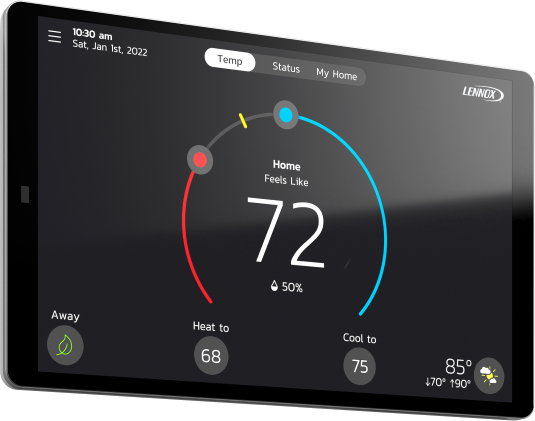
Lennox S40 Smart Thermostat
The ultimate controller for precise comfort
Central to your Lennox system, the S40 Smart Thermostat monitors connected sensors, manages temperature, humidity, and air quality, alerts of maintenance or issues, and enables remote diagnostics.
Your Home Comfort Command Center
Just a few quick steps to get your Lennox S40 Smart Thermostat set up online and to redefine comfort and efficiency for your entire home.

Set Up Wi-Fi
Once your Lennox Smart Thermostat is connected to Wi-Fi, you’re ready to create an account and take control. If you already have an account, simply sign in using your email and password.

Create Account / Login
Lorem ipsum dolor sit amet, consectetur adipiscing elit, sed do eiusmod tempor incididunt ut labore et dolore magna aliqua. Ut enim ad minim veniam, quis nostrud exercitation ullamco laboris nisi ut aliquip ex ea commodo consequat.

Enable Advanced Diagnostics
Lorem ipsum dolor sit amet, consectetur adipiscing elit, sed do eiusmod tempor incididunt ut labore et dolore magna aliqua. Ut enim ad minim veniam, quis nostrud exercitation ullamco laboris nisi ut aliquip ex ea commodo consequat.

Download Lennox Home App
Lorem ipsum dolor sit amet, consectetur adipiscing elit, sed do eiusmod tempor incididunt ut labore et dolore magna aliqua. Ut enim ad minim veniam, quis nostrud exercitation ullamco laboris nisi ut aliquip ex ea commodo consequat.
Set Up Wi-Fi
From your thermostat's home screen, go to Menu > User Account.
Select "Create Account".
Enter account details such as your first and last name, phone, email address, and password.
Select whether you want to receive e-mail updates, reminders and performance report.
Select allow your dealer to receive notifications (highly recommended).
Enter your information and select "Next". Enter your country/region, address, city, state, and zip code.
Select "Create Account".
Create Account / Login
Lorem ipsum dolor sit amet consectetur adipiscing elit quisque faucibus ex sapien vitae pellentesque sem placerat in id cursus mi.
Lorem ipsum dolor sit amet consectetur adipiscing elit.
Lorem ipsum dolor sit amet, consectetuer adipiscing elit. Aenean commodo ligula eget dolor. Aenean massa.
Vehicula quis cum accumsan consequat praesent.
Cras integer id non gravida.
Eros vulputate porttitor.
Eros nec laoreet, laoreet tempus platea.
Enable Advanced Diagnostics
Lorem ipsum dolor sit amet consectetur adipiscing elit quisque faucibus ex sapien vitae pellentesque sem placerat in id cursus mi.
Lorem ipsum dolor sit amet consectetur adipiscing elit.
Lorem ipsum dolor sit amet, consectetuer adipiscing elit. Aenean commodo ligula eget dolor. Aenean massa.
Vehicula quis cum accumsan consequat praesent.
Cras integer id non gravida.
Eros vulputate porttitor.
Eros nec laoreet, laoreet tempus platea.
Download Lennox Home App
Lorem ipsum dolor sit amet consectetur adipiscing elit quisque faucibus ex sapien vitae pellentesque sem placerat in id cursus mi.
Lorem ipsum dolor sit amet consectetur adipiscing elit.
Lorem ipsum dolor sit amet, consectetuer adipiscing elit. Aenean commodo ligula eget dolor. Aenean massa.
Vehicula quis cum accumsan consequat praesent.
Cras integer id non gravida.
Eros vulputate porttitor.
Eros nec laoreet, laoreet tempus platea.
Key Features and Tools
Knowing the details of a few key features will make both you and your home smarter.
Adjusting the Temperture
Tap your thermostat’s home screen to go to the horseshoe-shaped dial where you can adjust the temperature in either of two ways.
1. Using the Horseshoe Dial
Touch the red circle to adjust the temperature in heating mode and the blue circle to adjust it in cooling mode. If Perfect Temp* is enabled, you’ll see one dial that allows you to set your desired temperature.
Using the Horseshoe Dial
Touch the red circle to adjust the temperature in heating mode and the blue circle to adjust it in cooling mode. If Perfect Temp* is enabled, you’ll see one dial that allows you to set your desired temperature.
2. Tap “Heat To” or “Cool To” Icons
Tap either of the "Heat To" or "Cool To" icons where a detailed horseshoe dial will allow you to select the perfect heating or cooling temperature setpoint.
Tap “Heat To” or “Cool To” Icons
Tap either of the "Heat To" or "Cool To" icons where a detailed horseshoe dial will allow you to select the perfect heating or cooling temperature setpoint.
One-Touch Away Mode
Overrides your regular programming schedule with a single touch and sets back your heating and cooling set points to save energy.
Smart Home Integration
Effortlessly integrates with a range of smart home devices—from premium smart home systems like Control4 to popular virtual assistants like Amazon Alexa and Google Assistant

Smart Away™ Mode
Smart Away™ Mode uses the GPS in your smartphone to detect when you’re leaving, and automatically adjusts the temperature to a more energy-efficient setting. If you or a family member returns home, Smart Away then returns your system to a normal schedule and comfortable temperature.
1. First activate Smart Away on your thermostat.
2. Enable Smart Away on the mobile app. Go to Menu > Settings > Away and turn on "Smart Away".
3. The GPS distance at which Smart Away detects your smartphone is factory set at a 2-mile radius. To change this, press the "+" or "-" buttons under Smart Away Fence.
*For Smart Away to function properly, location services must be enabled on your mobile device.
Schedule IQ™
Combines with Smart Away™ Mode to learn your routine and create an energyoptimizing schedule of operation.*
To enable Schedule IQ, go to Menu > Schedule > Schedule IQ > Edit. You can set your preferred temperature for up to four time periods per day by sliding the blue and red circles along the line on the touchscreen. Add the Lennox Smart Thermostat App to your smart device and your system will automatically adjust the temperature when you’re away, saving energy and money.
*Smart Away must be turned on in order for Schedule IQ to function.
FAQs
Find answers to common questions about your thermostat from setup and Wi-Fi connection to troubleshooting and energy-saving tips.
You can create a Lennox account from either your smart phone or directly on the thermostat. Launch the Lennox Home App and select the Sign up option.
Lorem ipsum dolor sit amet, consectetur adipiscing elit, sed do eiusmod tempor incididunt ut labore et dolore magna aliqua. Ut enim ad minim veniam, quis nostrud exercitation ullamco laboris nisi ut aliquip ex ea commodo consequat. Duis aute irure dolor in reprehenderit in voluptate velit esse cillum dolore eu fugiat nulla pariatur. Excepteur sint occaecat cupidatat non proident, sunt in culpa qui officia deserunt mollit anim id est laborum.
Lorem ipsum dolor sit amet, consectetur adipiscing elit, sed do eiusmod tempor incididunt ut labore et dolore magna aliqua. Ut enim ad minim veniam, quis nostrud exercitation ullamco laboris nisi ut aliquip ex ea commodo consequat. Duis aute irure dolor in reprehenderit in voluptate velit esse cillum dolore eu fugiat nulla pariatur. Excepteur sint occaecat cupidatat non proident, sunt in culpa qui officia deserunt mollit anim id est laborum.
Lorem ipsum dolor sit amet, consectetur adipiscing elit, sed do eiusmod tempor incididunt ut labore et dolore magna aliqua. Ut enim ad minim veniam, quis nostrud exercitation ullamco laboris nisi ut aliquip ex ea commodo consequat. Duis aute irure dolor in reprehenderit in voluptate velit esse cillum dolore eu fugiat nulla pariatur. Excepteur sint occaecat cupidatat non proident, sunt in culpa qui officia deserunt mollit anim id est laborum.
Lorem ipsum dolor sit amet, consectetur adipiscing elit, sed do eiusmod tempor incididunt ut labore et dolore magna aliqua. Ut enim ad minim veniam, quis nostrud exercitation ullamco laboris nisi ut aliquip ex ea commodo consequat. Duis aute irure dolor in reprehenderit in voluptate velit esse cillum dolore eu fugiat nulla pariatur. Excepteur sint occaecat cupidatat non proident, sunt in culpa qui officia deserunt mollit anim id est laborum.